 Figma
Figma API
API Web to code extension
 Adobe XD
 Discord
 Twitter
 GitHub


 Blog
Blog
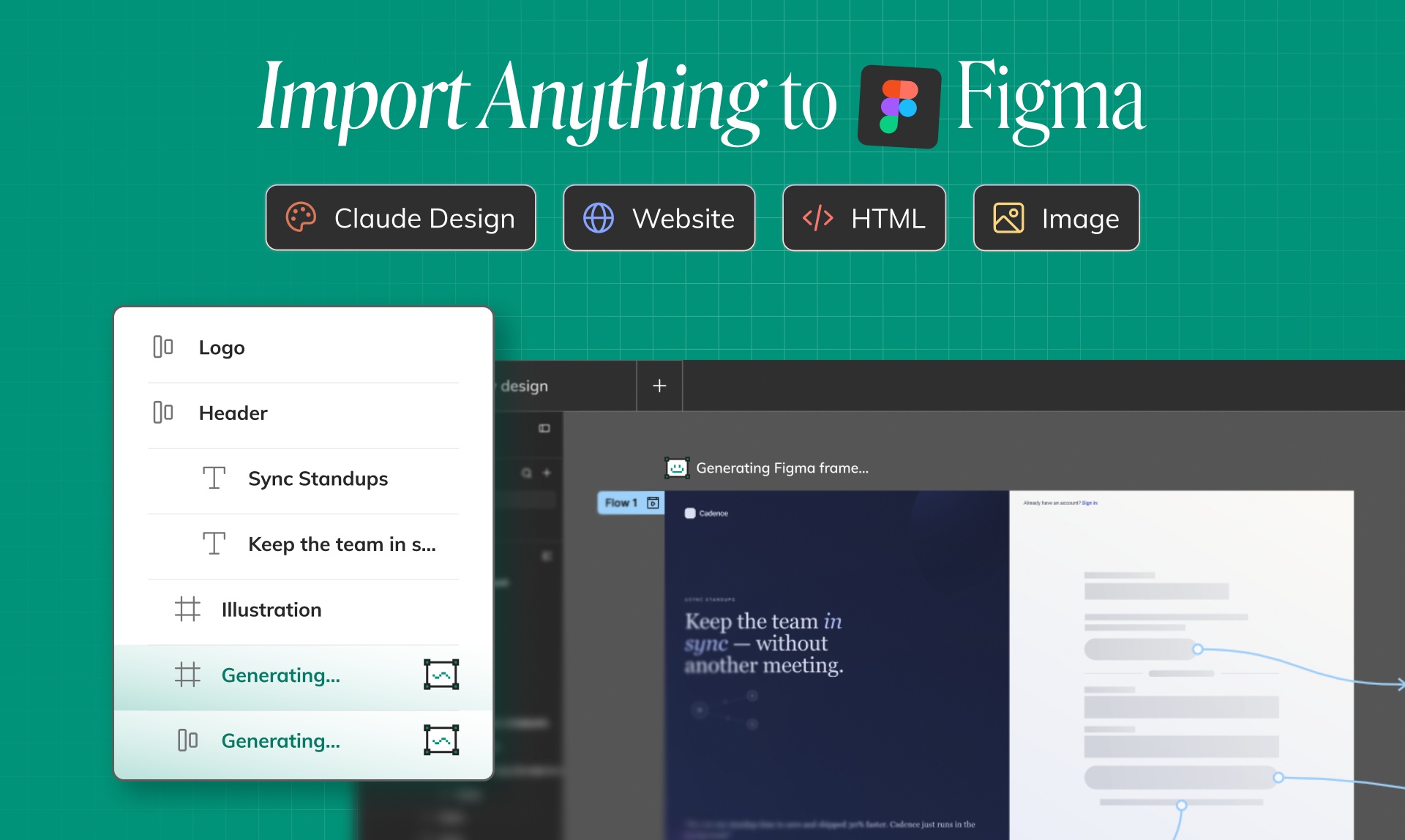
Import to Figma: Buddy turns Images, HTML, Claude design, Claude prototypes, and Websites to Layers7 min read
Reading Time: 5 minutesDesign work no longer starts in one place.
Sometimes the first idea is a Claude Design prototype. Sometimes it is a Claude artifact. Sometimes it is an HTML experiment, a screenshot, a landing page you love, or a live website your team wants to learn from.
The problem is not getting AI or the web to create something interesting. The problem is getting that idea back into the place where product design actually happens: Figma.
Buddy lets you import almost anything into Figma and turn it into editable design layers on the canvas. Not a flattened screenshot. Not a static reference image. Real layers you can edit, organize, refine, and hand off.
Import Anything to Figma with Buddy, then keep designing in Figma
Buddy is Anima’s Figma AI design agent. It lives inside Figma, reads your canvas, and helps you create, edit, and organize designs through chat.
Now Buddy also works as the bridge between outside inspiration and your Figma workflow. Paste in an artifact, image, screenshot, HTML, or URL, and Buddy turns it into editable Figma layers so you can continue the design process without manually rebuilding every frame.
That means you can start from:
- Claude Design artifacts, when you want to bring an AI-generated interface into Figma.
- Claude artifacts, when a prototype, screen, or interactive idea was created in Claude.
- HTML artifacts, when the design starts from generated HTML or a coded mockup.
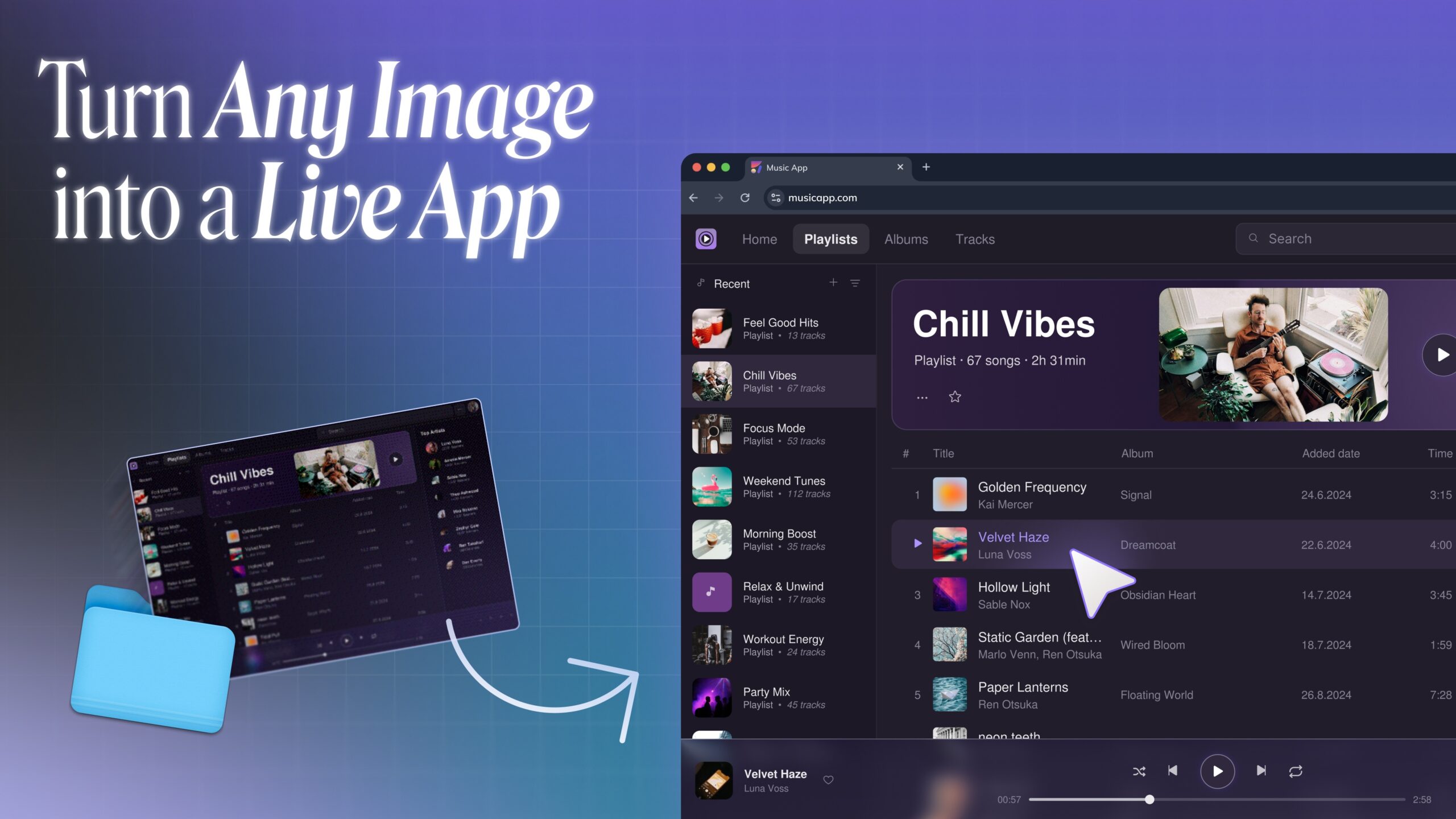
- Images and screenshots, when you want to paste a visual reference and get editable Figma layers.
- Website URLs, when you want to clone a public website into Figma as a design you can inspect and remix.
The workflow is simple: bring the source into Buddy, let Anima interpret the visual structure, then continue designing directly on the Figma canvas.
Why this matters: AI gives you the first draft, Figma gives you control
AI tools are very good at generating first drafts. They can create app concepts, landing pages, dashboards, onboarding flows, pricing pages, internal tools, and product experiments in minutes.
But professional design work does not end at the first draft. It usually starts there.
Teams still need to edit the copy, fix hierarchy, apply the brand, align spacing, use components, review edge cases, and prepare a file that other designers, PMs, and engineers can actually work with.
That is why import matters. If an AI-generated idea stays locked inside a chat window, artifact viewer, screenshot, or browser tab, it is hard to turn into a real product design workflow.
Buddy brings that work back to Figma as editable layers, so the AI output becomes something your team can shape.
Import Claude Design artifacts into Figma
Claude Design is great for quickly exploring UI ideas and interactive concepts. You can describe a product, feature, or landing page and get a polished artifact fast.
But if the next step is design review, brand refinement, or handoff, your team usually needs the result in Figma.
With Buddy, you can bring a Claude Design artifact into Figma and continue from there. Buddy recreates the interface as editable layers, so you can adjust layout, typography, colors, spacing, icons, and content on the canvas.
This is useful when a founder, PM, marketer, or engineer creates an AI prototype first, then wants a designer to make it production-quality.
Import Claude artifacts and AI prototypes
Claude artifacts can include more than a single screen. They can contain states, panels, menus, forms, tables, cards, empty states, and full UI concepts.
Instead of manually taking screenshots and tracing the design, paste the artifact into Buddy. Anima turns it into a structured Figma design that your team can edit.
Once it is on the canvas, you can:
- Separate screens into frames.
- Edit text and product copy.
- Refine spacing and hierarchy.
- Replace generic visuals with brand assets.
- Apply your design system.
- Prepare the design for review or engineering handoff.
The AI prototype becomes the starting point, not a dead end.
Import HTML artifacts into Figma
Many AI tools now generate HTML as their design output. That can be useful for quick previews, but HTML is not always the best place to evaluate product design.
Designers need canvas control. They need to move layers, compare options, inspect hierarchy, and align the work with a design system.
Buddy helps by bringing HTML artifacts back into Figma. You can use the HTML output as a source, then turn it into editable Figma layers that can be cleaned up, reorganized, and polished.
This is especially helpful for teams that prototype in code first, then need a proper design file for collaboration.
Paste an image or screenshot and get editable Figma layers
Screenshots are everywhere in product work.
A user sends a screenshot of a flow they like. A teammate shares a competitor page. A PM drops a rough UI idea into Slack. A founder sketches a landing page with another AI tool.
Normally, that screenshot is just a reference. You can place it in Figma, but you still have to rebuild the UI manually if you want to edit it.
With Buddy, you can paste an image or screenshot and turn it into editable Figma layers. Text, layout, visual structure, and UI elements become something you can work with on the canvas.
That saves the most annoying part of the process: recreating what already exists just so you can make changes.
Clone any website by pasting a URL
Website inspiration is one of the most common starting points for new product and marketing work.
Maybe you like the structure of a SaaS homepage. Maybe you want to study a pricing page. Maybe you need to capture a dashboard layout, onboarding flow, or landing page section.
With Buddy, you can paste a website URL and bring the page into Figma as an editable design. Instead of saving a screenshot, Buddy helps you recreate the visual structure as layers on the canvas.
Use it to learn from patterns, explore alternatives, build moodboards, or speed up the first version of a new page. Then make it yours with your copy, components, brand, and product story.
What you get on the Figma canvas
The key difference is editability.
Buddy is not just placing a bitmap on the canvas. The goal is to give you a workable Figma design that can be edited, reviewed, and improved.
After importing, you can continue with normal Figma work:
- Edit text directly.
- Move and resize layers.
- Adjust colors, fonts, spacing, and hierarchy.
- Organize frames and sections.
- Apply Auto Layout where needed.
- Replace rough elements with real components.
- Align the result with your design system.
That is the point of Buddy: speed without losing control.
A better workflow for AI-generated design
The old workflow looked like this:
- Generate an idea in an AI tool.
- Take screenshots.
- Paste screenshots into Figma.
- Manually rebuild the design from scratch.
- Start the actual design work.
The Buddy workflow is shorter:
- Create or find the source: artifact, HTML, image, screenshot, or URL.
- Paste it into Buddy.
- Get editable Figma layers.
- Keep designing on the canvas.
This matters because more teams are starting from AI and web inspiration, but they still need a professional design workflow. Buddy connects those worlds.
Who is this for?
Import Anything to Buddy is useful for anyone who needs to move fast without losing the Figma workflow.
- Designers can turn AI outputs and screenshots into editable starting points.
- PMs can bring Claude artifacts or website references into Figma for clearer product discussions.
- Founders can move from idea to design file without rebuilding everything manually.
- Marketers can clone landing page inspiration and adapt it to their brand.
- Engineers can prototype in HTML or AI tools, then hand the result back to design.
It is not about replacing design. It is about removing the boring reconstruction work between an idea and an editable canvas.
Try importing your next idea into Buddy
The next great product screen might start in Claude Design, a Claude artifact, a generated HTML prototype, a screenshot, or a website URL.
With Buddy, that starting point can become an editable Figma design in your existing workflow.
Paste it into Buddy, get the layers on the canvas, and keep designing.