 Figma
Figma API
API Web to code extension
 Adobe XD
 Discord
 Twitter
 GitHub


 Blog
Blog
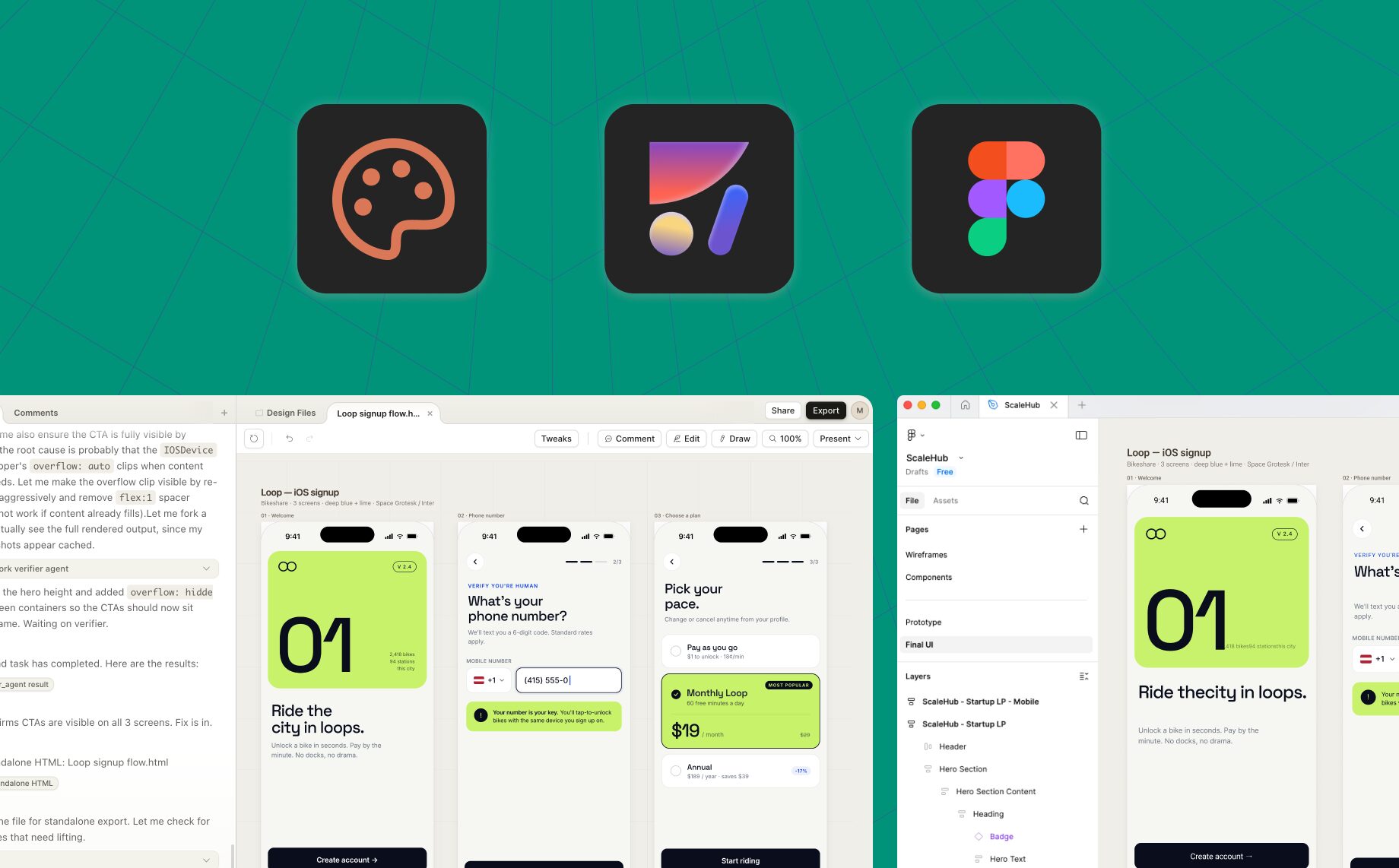
Claude Design to Figma: Export as Editable Layers6 min read
Reading Time: 5 minutesHow to go from Claude Design to Figma:
- In Claude Design: Share → Export as standalone HTML
- Download the file
- Drop the file into Anima Figma design agent
- The agent will render the design as Figma layers
This is the shortest verified workflow: export the standalone HTML from Claude Design, then use Buddy to bring it into Figma as editable layers. Claude Design does not currently export a native Figma file.
What is Claude Design?
Claude Design turns a natural-language prompt into a visual artifact that you can refine in Claude. It supports direct canvas editing, so you can adjust the work before export rather than relying only on conversational changes.
For a broader overview of the product and where it fits, read what Claude Design is. For a closer look at its strengths, limitations, and alternatives, see our Claude Design review.
Claude Design can export a standalone HTML file, but it does not export native Figma layers. The HTML file is the bridge for moving the result into an editable Figma workflow.
Why move from Claude Design to Figma?
Claude Design is useful for creating and refining a first visual direction. Teams often move the result into Figma when they need to connect it to an existing product file, review it with designers, or continue the work with components, Auto Layout, and a design system.
Importing the HTML through Buddy gives you editable Figma layers rather than treating the result as a single image. The imported design is a starting point for continued design work, not a guarantee that every element is already production-ready or mapped to your system.
What is Buddy, Anima’s Figma AI design agent?
Buddy is Anima’s Figma AI design agent. It works inside Figma and can create or edit frames, apply Auto Layout, use components and variables, and help organize layers through chat.
For this workflow, Buddy imports the standalone HTML exported by Claude Design and renders it as editable Figma layers. Once the import is on the canvas, you can inspect the structure and continue refining it with Figma’s native tools and your team’s design system.
What transfers from Claude Design to Figma?
The standalone HTML gives Buddy more than a visual snapshot to work from. The import can recreate the visible design as editable Figma layers, including text and the page’s visual structure.
- Text: Imported text can be selected and edited in Figma.
- Layout: Sections and interface elements are recreated as layers instead of one flattened image.
- Visual styling: Colors, spacing, borders, and other visible styling can carry into the reconstructed design.
- Images: Images available to the exported HTML can appear in the imported result.
Results depend on the exported HTML and its assets. Check the imported frame before treating it as the final source of truth.
What may need cleanup after import?
An editable import saves you from rebuilding the screen from scratch, but it is still an import. Review the result before handing it off or connecting it to a design system.
- Confirm fonts, line breaks, spacing, and alignment against the Claude Design original.
- Check image crops, icons, and any assets that were loaded from external sources.
- Review layer names and grouping so the file is easy for teammates to navigate.
- Apply or refine Auto Layout where the screen needs responsive behavior.
- Replace repeated elements with your existing Figma components and variants.
- Map colors, typography, and spacing to your team’s variables, styles, and tokens.
- Recreate interactions or states that are not represented by the static imported frame.
HTML import vs. screenshot import
| Import method | Best for | What to expect |
|---|---|---|
| Standalone HTML | Moving a Claude Design export into Figma | The file contains text and page structure in addition to the visual result, making it the better source for an editable-layer import. |
| Screenshot | Using a visual reference when HTML is unavailable | A screenshot contains pixels, not the underlying HTML structure. Reconstructing editable layers from it requires more interpretation and usually more verification. |
Use the standalone HTML when Claude Design provides it. Use a screenshot as a fallback or reference, not as the first choice for this workflow.
How to continue with components, Auto Layout, and your design system
After Buddy renders the design, select the imported frame and review it from the outside in. Fix the main section structure first, then repeated patterns, then visual details.
- Structure the frame: Check the top-level groups and apply Auto Layout where the content needs to adapt.
- Reuse existing components: Replace imported buttons, inputs, cards, and navigation elements with instances from your library where appropriate.
- Map design tokens: Apply your existing color, typography, spacing, and radius variables or styles.
- Test the result: Resize key frames, check text wrapping, and compare the design with the original export before handoff.
Buddy can help with these canvas tasks, but the final structure should still be reviewed by the team that owns the Figma file and design system.
Troubleshooting the Claude Design to Figma import
The imported design does not match the HTML
Open the exported HTML in a browser first and confirm that it renders correctly there. If the browser version is already missing styling or content, export the file again from Claude Design. If the HTML is correct, compare the Figma frame section by section and repair the affected spacing, fonts, or layout.
Images or icons are missing
Check whether the exported HTML can load those assets in a browser. Assets that depend on an unavailable or restricted source may not appear as expected. Replace missing items in Figma with files your team can access.
Text wraps differently in Figma
Confirm that the intended font is available in Figma, then check the text box width, font size, line height, and letter spacing. A font substitution can change line breaks even when the copy is unchanged.
The layers are editable but hard to maintain
Rename important groups, simplify unnecessary nesting, apply Auto Layout where useful, and replace repeated elements with component instances. Treat import as the start of the Figma cleanup pass, not the end.
Claude Design to Figma FAQ
Can you export Claude Design directly to Figma?
No. Claude Design exports standalone HTML, not a native Figma file. Export the HTML, then import it through Buddy in Figma.
How do I import a Claude Design file into Figma?
In Claude Design, choose Share → Export as standalone HTML, download the file, and drop it into Buddy. Buddy renders the design on the Figma canvas as editable layers.
Does Claude Design export editable Figma layers?
Not directly. Buddy converts the exported HTML into editable Figma layers, which you can inspect and refine after import.
Will the imported design already use my Figma components and Auto Layout?
Do not assume that every imported element is already mapped to your library or structured exactly as your team expects. Review Auto Layout, replace repeated elements with component instances, and apply your variables and styles during cleanup.
Should I import the HTML or take a screenshot?
Use the standalone HTML when possible because it contains text and page structure, not only pixels. A screenshot is useful as a visual fallback, but it generally requires more interpretation and cleanup.
Can I edit the design in Claude before moving it to Figma?
Yes. Claude Design supports direct canvas editing. Refine the design there first, then export the standalone HTML when you are ready to continue in Figma.