 Figma
Figma API
API Web to code extension
 Adobe XD
 Discord
 Twitter
 GitHub



Claude Design Review: Features, Pros, Cons, and Best Alternatives16 min read
Reading Time: 12 minutesAnthropic has officially entered the AI design space with Claude Design, a new tool for creating prototypes, slides, one-pagers, and visual concepts through conversation. Instead of starting from a blank canvas, users can describe what they want, add context, and refine the output with Claude. This makes Claude Design especially interesting for product managers, founders, marketers, and designers who need to move quickly from idea to visual direction.
At the same time, Claude Design is part of a broader shift in AI design tools, where teams are also comparing workflows like Anima Playground for high-fidelity, code-connected prototypes and Buddy, the Figma AI agent by Anima, for design-system-aware work directly inside Figma.
In this Claude Design review, we’ll look at its main features, strengths, limitations, and how it compares with other AI design tools for teams that care about speed, brand consistency, Figma workflows, and production-ready output.
On April 17, 2026, Anthropic launched Claude Design, a new product from Anthropic Labs that lets users create polished visual work with Claude, including designs, prototypes, slides, one-pagers, and interactive experiences. The tool is available in research preview for Claude Pro, Max, Team, and Enterprise subscribers.
Until recently, design work usually lived inside dedicated tools like Figma, Canva, and traditional prototyping platforms. Claude Design takes a different route. Instead of starting from a blank canvas, you start with a conversation.
You describe what you want, Claude generates a first version, and then you refine it through chat, inline comments, direct edits, and design controls. For product managers, founders, marketers, and designers who want to move faster from idea to visual output, the workflow is easy to understand.
But how good is Claude Design in practice? And how does it compare to alternatives like Anima, Buddy, Banani, UX Pilot, and Google Stitch?
Here is a practical Claude Design review covering its features, strengths, limitations, and best alternatives.
What Is Claude Design?
Claude Design is an AI design tool built into Claude. It allows users to create visual work by describing what they want in natural language.
Anthropic describes it as a way to collaborate with Claude on designs, prototypes, slides, one-pagers, and more. It is powered by Claude Opus 4.7, Anthropic’s advanced vision model, and is currently available in research preview for Claude Pro, Max, Team, and Enterprise users.
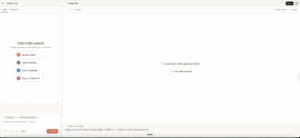
The core experience is simple. You open Claude Design, write a prompt, add any relevant context, and Claude generates a working design on the canvas. From there, you can keep refining the output through conversation, inline feedback, and direct edits.
Claude Design is especially useful for people who need to turn ideas into something visual quickly. That includes product managers creating feature mockups, founders preparing pitch decks, marketers building campaign assets, and designers exploring multiple directions before committing to one.
Claude Design Features
1. Text-to-design generation
The main Claude Design workflow starts with a prompt. You describe the thing you want to create, and Claude generates a first version.
You can ask it to create things like:
- Product wireframes
- App screens
- Landing pages
- Pitch decks
- One-pagers
- Marketing assets
- Interactive prototypes
- Internal tools
- Social media visuals
This makes Claude Design feel less like a traditional design tool and more like a creative partner. You do not need to know how to structure a Figma file or build a deck from scratch. You explain the goal, audience, layout, and content, and Claude gives you a starting point.
That does not mean the first result will always be perfect. Like most AI design tools, the strongest results usually come after a few rounds of refinement.
2. Chat-based editing and inline comments
Once Claude creates a design, you can continue refining it in a few ways.
You can ask for broad changes in chat, such as “make this feel more premium” or “turn this into a dashboard layout.” You can also leave inline comments on specific elements and edit text directly on the canvas. Anthropic also mentions custom sliders and adjustment controls that can help tweak spacing, colors, and layout.
3. Design system support
Claude Design can apply a team’s design system to new projects. During onboarding, Claude can read your codebase and design files to build a design system that includes your colors, typography, and components.
This is a meaningful feature for companies that care about brand consistency. Generic AI design output is one of the biggest problems in this category. If every AI-generated page looks like the same polished SaaS template, it is not very useful for real teams.
That said, there is an important nuance. Claude Design builds its design system by reading existing files and codebases. For teams that treat Figma as the source of truth, this may not feel as direct as a native Figma design system workflow.
4. Multiple import options
Claude Design gives users several ways to provide context. According to Anthropic, users can start with a text prompt, upload images and documents, connect a codebase, or use a web capture tool to grab elements from a website.
This helps avoid the “blank canvas” problem. Instead of asking Claude to invent everything from scratch, you can give it references, screenshots, existing assets, or product context.
The more context you provide, the better the output is likely to be.
5. Collaboration and sharing
Claude Design supports organization-scoped sharing. You can keep a design private, share it with anyone in your organization via link, or allow colleagues to edit and collaborate. Anthropic says collaborators can modify the design and chat with Claude together.
This is especially useful for product teams. A PM can create an early prototype, share it with a designer or engineer, and continue refining the idea before writing a full spec or opening a development task.
6. Export options
Claude Design supports several export paths. You can share a design as an internal URL, save it as a folder, or export it to Canva, PDF, PPTX, or standalone HTML files. Anthropic also highlights a handoff flow to Claude Code, where Claude packages the design into a bundle that can be passed to Claude Code for implementation.
One important limitation is that Claude Design does not offer a direct export to Figma. That matters because many teams still rely on Figma for final design refinement, design system management, collaboration, and handoff.
There are workarounds, including using Buddy by Anima to bring Claude Design’s HTML output into Figma, but Claude Design itself does not provide a native Figma export.
Claude Design Pros and Cons
What Claude Design does well
Claude Design is strongest when speed matters. It helps users move from an idea to a visual artifact quickly. That is valuable for PMs, founders, marketers, and designers who want to explore more directions without spending hours setting up files.
The design system support is also promising. If Claude can understand your brand, components, and product patterns, the output becomes more useful than a generic AI mockup.
The handoff to Claude Code is another major benefit. For teams already using Claude Code, the workflow from idea to prototype to implementation feels more connected than using separate tools for every step.
Where Claude Design is still limited
Claude Design is still in research preview, so teams should expect some rough edges.
The biggest limitation is control. Claude Design is great for inspiration, exploration, and quickly testing different directions, but it is not always where the final design work happens. Final refinements, detailed layout decisions, design system cleanup, and production handoff often still require a tool like Figma.
This becomes more important because Claude Design does not currently offer a direct export to Figma. For teams that use Figma as their source of truth, that can be a real blocker. You can still export HTML or use Claude Code, but if the goal is to continue editing the result inside Figma, you need an extra step.
There are ways to bridge that gap, but they depend on other tools. For example, Buddy by Anima can help teams bring Claude Design output back into Figma, making it possible to continue the design process in the place where many teams already manage their components, layouts, and final refinements.
The second limitation is ecosystem fit. Claude Design is most powerful when your team already works inside the Claude ecosystem. If your designers live in Figma and your developers use other coding agents, you may prefer tools that connect more directly to those workflows.
Finally, AI-generated visuals can still feel generic without strong context. Claude Design improves this with design system support, but the quality still depends heavily on the inputs you provide.
Best Claude Design Alternatives
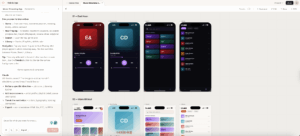
Claude Design is a strong new option, but it is not the only AI design tool worth considering. The best alternative depends on your workflow, your team, and how close you need the output to be to real product code.
1. Anima Playground
Best for: Product teams that want brand-aware prototypes and code-ready output.
Anima Playground is a design-first vibe-coding environment built for creating high-fidelity, on-brand prototypes. Where Claude Design lives inside the Claude ecosystem, Anima is focused on helping teams create product experiences that look and behave like the real product.
Try Designing with AI
Anima creates websites, apps and UX design from a prompt, try it here –
Anima’s main advantage is that it lets teams start from real product context, not only from a blank prompt. You can build from text, import a Figma design and turn it into a working React prototype, clone an existing website, or extract a brand from a live URL and use it to design a new page or feature. With Figma design system support, teams can also build with their real components instead of generating another generic AI interface.
Another important difference is that Anima prototypes can behave more like real apps, not just visual mockups. Teams can add real data and connect prototype flows to a database, which makes it easier to test product experiences that depend on user inputs, saved information, dashboards, or dynamic content.
Anima also creates a more circular workflow between design, prototyping, and development. Teams can start in Figma, bring designs into Anima, build a working prototype, and then copy the resulting designs back into Figma for final refinement and designer handoff.
From there, teams can continue toward production by downloading the generated code, sharing it with developers, or using MCP to keep working in coding agents and development tools. This makes Anima useful not only for quick exploration, but for an end-to-end workflow that connects Figma, working React prototypes, and real development.
Use Anima Playground if your priority is not just generating a quick visual, but creating a working prototype that feels real enough to align stakeholders, test product ideas, refine the design in Figma, and move closer to production.
2. ChatGPT + AgentGrid.io
Best for: ChatGPT users who want a Claude Design alternative for creating, iterating on, previewing, and sharing HTML design artifacts.
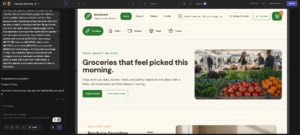
ChatGPT can design and prototype in HTML, with image generation built in. In many ways, that makes it a stronger design agent than Claude, especially when a concept needs original visuals.
What ChatGPT lacks is a durable place to share, collaborate on, and version those designs. AgentGrid.io fills that gap. Connect ChatGPT through the AgentGrid plugin, then tell it what to design and ask it to put the result on AgentGrid.io.
Collaboration is built in. Multiple ChatGPT agents, plus Claude, Grok, and other connected agents, can work on the same artifact. Design files stay in a secure team folder, while full version history tracks every change, like Figma or Google Docs.
When the design is ready, ask the agent to publish it as a full-screen public prototype, website, or app. Teammates can also comment and mention people or agents directly on the design. For example: “@Mo’s GPT, add a colorful animated shader background.” That directs the agent to the right layer.
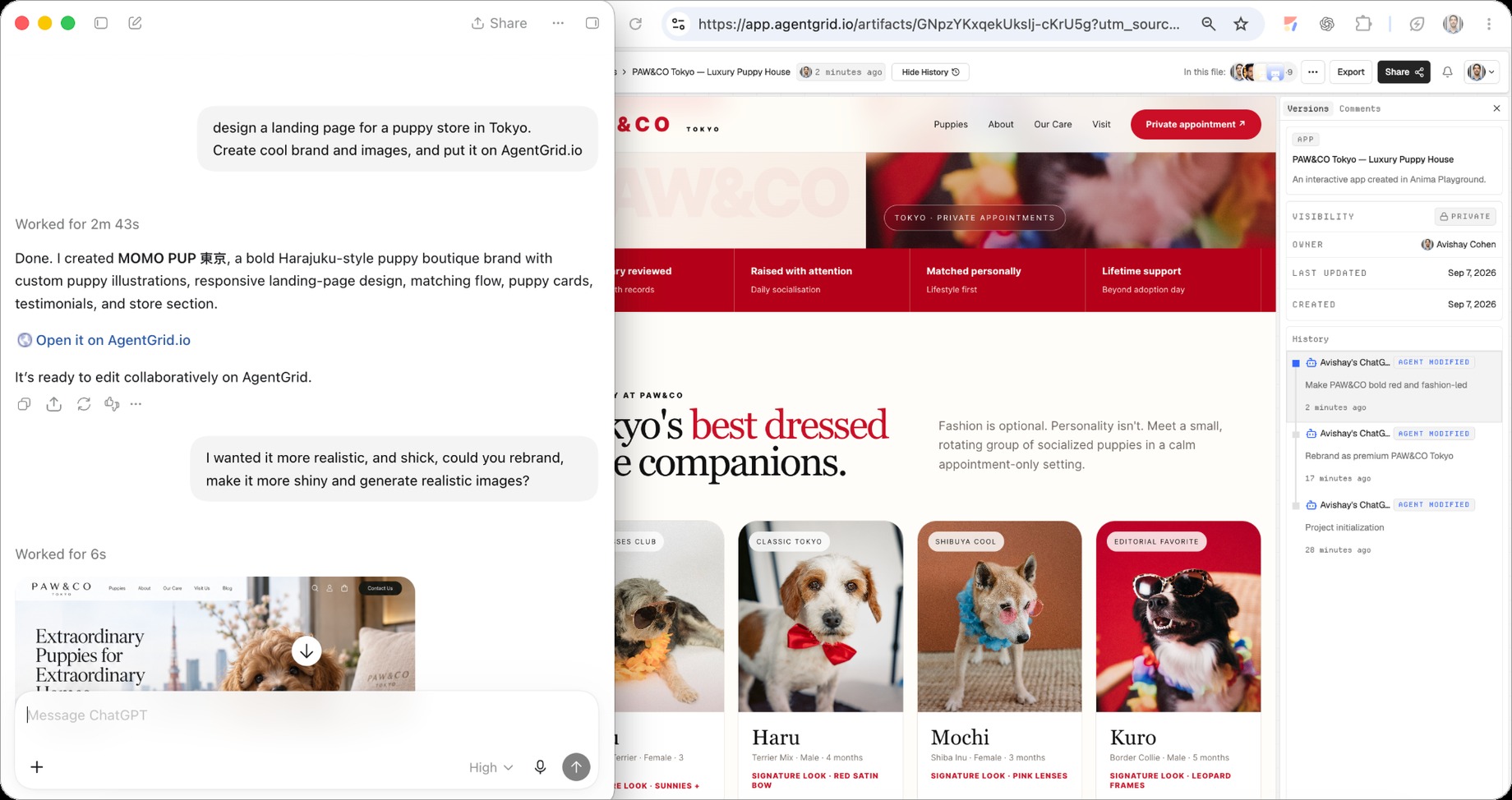
For ChatGPT users, it is the ultimate Claude Design alternative: image-capable design, shared artifacts, collaboration, version history, and publishing in one workflow.
3. Buddy by Anima – Figma AI Agent
Best for: Teams that want an AI design agent inside Figma.
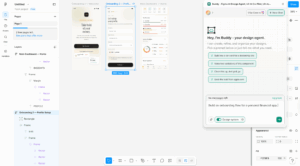
Buddy is Anima’s AI design agent that lives directly inside Figma. That is its biggest advantage over Claude Design: you do not need to move your work into a separate AI workspace or export it back into Figma later. You start in Figma, create and edit real Figma nodes, and keep working in the same environment where your team already designs.
Buddy can also generate designs using your real Figma design system. It can reuse existing components, variables, and styles. For teams that already manage their design system in Figma, this is a major difference.
Beyond generating screens, Buddy acts more like a flexible AI agent for the Figma canvas. You can ask it to create variations, apply components, organize messy frames, clean up nodes, remove elements, or restructure layouts. In that sense, Buddy is not only a design generator. It is an AI assistant for working faster inside Figma itself.
Buddy can also help solve one of Claude Design’s biggest workflow gaps: the lack of native Figma export. If a team creates a concept in Claude Design and wants to keep refining it in Figma, they can copy the HTML output from Claude Design, paste it into Buddy, and convert it into editable Figma nodes. That gives teams a practical path from Claude Design exploration back into their Figma workflow. Read this to learn more.
4. Banani
Best for: Fast UI exploration with Figma export.
Banani is a canvas-based AI UI design tool that generates UI from prompts and image references. It is useful for quick ideation, especially when you want to generate multiple directions and then continue refining the output in Figma.
Banani is more focused than Claude Design. It does not try to own the entire workflow from visual idea to code handoff. Instead, it helps users quickly create UI concepts and move them into design tools for further editing.
Choose Banani if your main goal is rapid design exploration and Figma export.
5. UX Pilot
Best for: UX research, flows, wireframes, and usability analysis.
UX Pilot is more structured around UX work than visual generation. It helps with wireframes, user flows, personas, journey maps, and usability analysis.
This makes it a good option for teams that want AI help earlier in the product design process. Instead of jumping straight into polished screens, UX Pilot can help clarify the user journey, identify usability issues, and shape the structure of the product experience.
Use UX Pilot if you care more about UX planning and validation than high-fidelity visual output.
6. Google Stitch
Best for: Teams that want fast AI UI ideation with a Google-native design-to-development workflow.
Google Stitch is an AI UI design tool from Google Labs that helps teams generate high-fidelity web and mobile interfaces from natural language. It is especially useful for quick ideation, exploring multiple UI directions, and turning early product ideas into visual concepts without starting from a blank canvas.
Compared with Claude Design, Stitch feels more focused on UI design and product interface exploration. Its newer canvas experience is built around “vibe design,” where teams can bring in context like text, images, and code, then iterate on screens and flows inside an AI-native design workspace.
Google also highlights design system support through DESIGN.md, URL-based design system extraction, and integrations with developer tools through Stitch MCP and SDK.
Choose Google Stitch if your team wants a fast way to explore high-fidelity UI concepts, especially if you already work with Google’s AI and development ecosystem.
Who Should Use Claude Design?
Claude Design is a good fit for people who need to communicate ideas visually but do not want to start from a traditional design tool.
It is especially useful for:
- Product managers creating quick feature mockups
- Founders preparing pitch decks or product concepts
- Marketers building campaign visuals or landing page ideas
- Designers exploring multiple visual directions
- Teams already using Claude and Claude Code
Claude Design is worth testing if your team already uses Claude and wants to move quickly from idea to visual output.
But if your workflow depends heavily on Figma, design systems, or production-grade frontend handoff, it is worth comparing Claude Design with Anima Playground and Buddy, the Figma AI agent by Anima.
Claude Design is not necessarily a Figma replacement. It is better understood as a fast AI design workspace for exploration, prototyping, and visual communication.
Final Verdict: Is Claude Design Worth It?
Claude Design is one of the most interesting new AI design tools because it brings visual creation directly into Claude.
Its biggest strength is speed. You can describe an idea, generate a visual direction, refine it, collaborate with teammates, export it, and even hand it off to Claude Code. That makes it especially useful for non-designers and cross-functional teams that need to move quickly.
Its biggest limitation is depth. Designers who need full control over components, variants, design systems, and Figma-native workflows may still prefer tools built around existing design environments.
So the answer depends on your team.
If you already use Claude and want a fast way to create prototypes, slides, and visual assets, Claude Design is absolutely worth trying.
If your team cares deeply about brand fidelity, Figma workflows, and code-connected design systems, Anima Playground or Buddy may be a better fit.
Either way, Claude Design is another sign that AI design tools are moving beyond simple image generation. The next wave is about turning ideas into usable, editable, and eventually buildable product experiences.
FAQ
Can Claude Design replace Figma?
Not directly. Claude Design is useful for fast exploration, prototypes, decks, and visual communication. Figma still offers more mature tools for detailed design work, component management, design systems, and pixel-level editing.
Does Claude Design support design systems?
Yes. Claude Design can build and apply a team design system by reading codebases and design files. It can use colors, typography, and components automatically across new projects.
What are the best Claude Design alternatives?
The best Claude Design alternatives include Anima Playground, Buddy by Anima, Banani, UX Pilot, and Google Stitch. The right choice depends on whether you need Figma-native workflows, design system support, UX planning, or code-ready prototypes.
Can I export Claude Design projects to Figma?
Claude Design does not currently offer a direct export to Figma. It supports export options like Canva, PDF, PPTX, standalone HTML, internal URLs, and folders. If you need to continue editing the result in Figma, one workaround is to copy the HTML from Claude Design and paste it into Buddy by Anima, which can turn the HTML into editable Figma nodes.