 Figma
Figma API
API Web to code extension
 Adobe XD
 Discord
 Twitter
 GitHub



AI Design: Designing with AI in 202614 min read
Reading Time: 10 minutesReading Time: 9 minutes
AI design is the new workflow for turning an idea into a real product interface with artificial intelligence. In 2026, designing with AI no longer means “generate a pretty mockup and tweak it later.” It means starting with a prompt, image, existing website, or Figma design — then iterating until you have an on-brand, responsive, working experience, aka vibe design or vibe coding.
That shift matters because the best AI design tools are not just image generators. They help you explore UX, keep visual quality high, edit the result, add functionality, and move from design to code without rebuilding everything from scratch.
Try Designing with AI
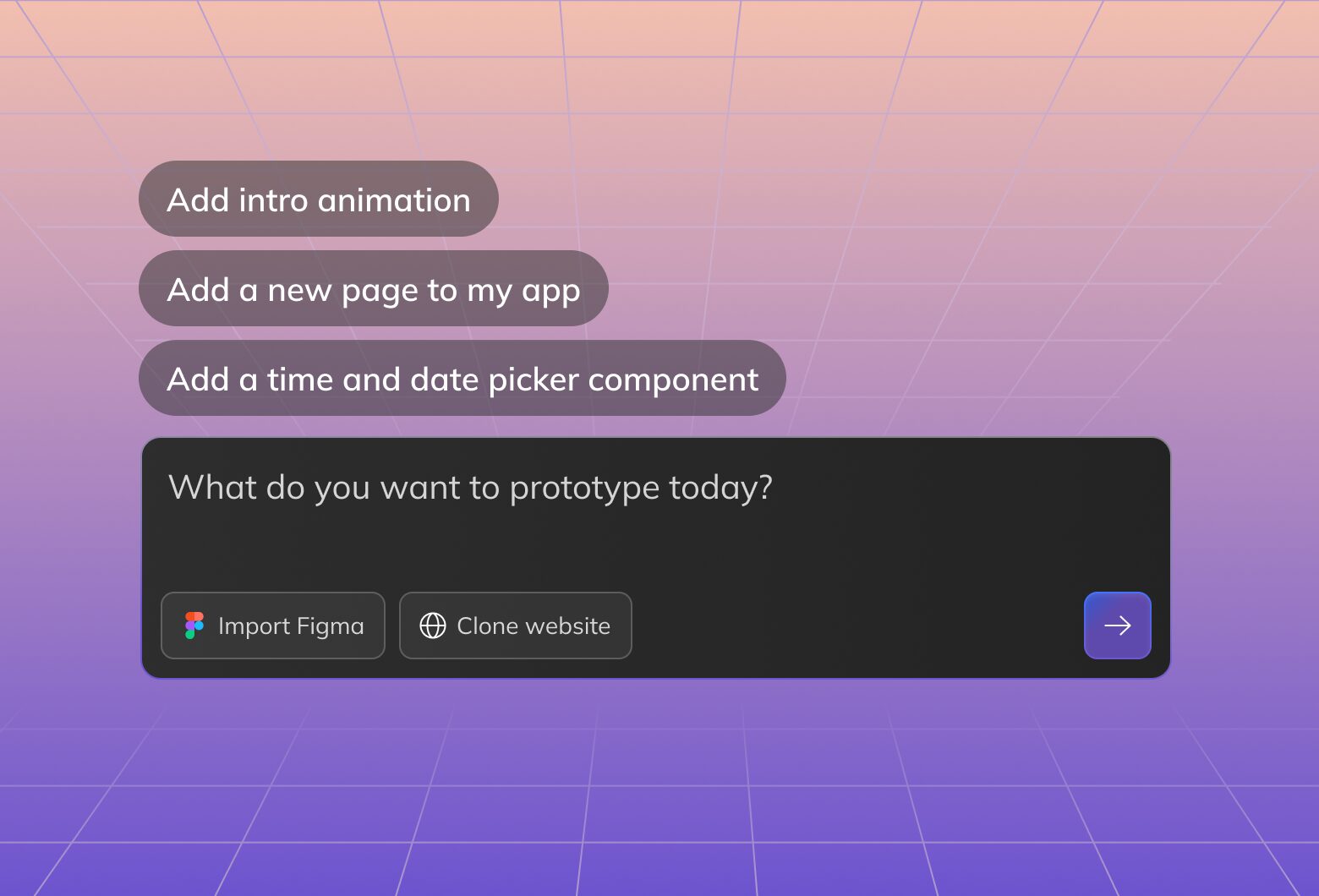
Describe what you want to design and Anima Playground will turn your prompt into a working, editable website or app.
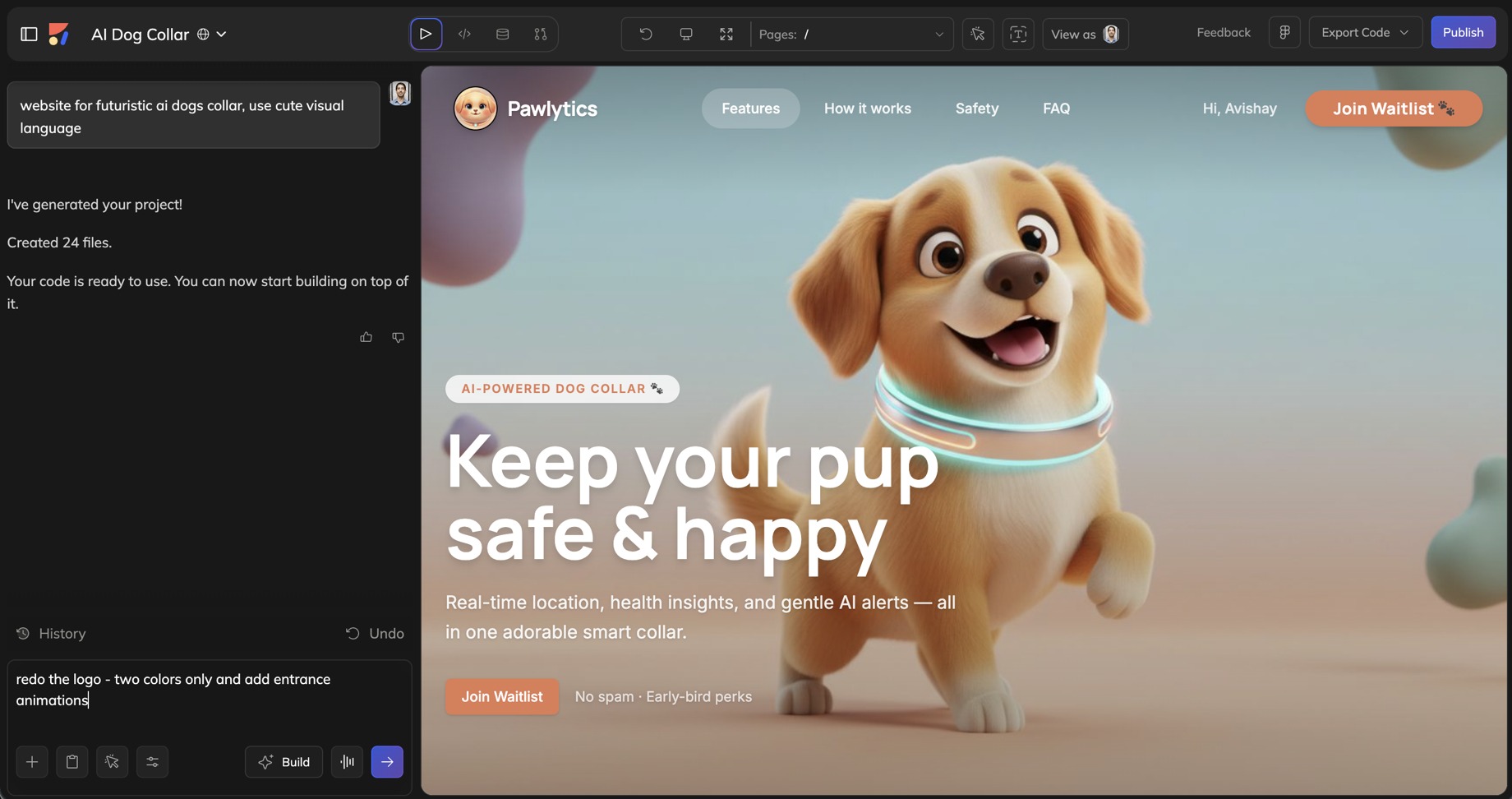
Anima Playground is built for this new AI design workflow. You can start from a text prompt, clone a website, capture UI behind a login, import a Figma design, upload or reference an image, edit the result by chat, add database-backed features, and publish a live site from the same workspace.
What is AI design, also called vibe design?
AI design is the process of using AI to create, refine, and ship visual and interactive product experiences. It can include generating layouts from prompts, transforming screenshots into editable pages, cloning a website as inspiration, applying a brand or design system, and converting designs into code.
In 2026, AI design is also called vibe design because the workflow is about steering an AI agent toward your vision. You describe the idea, review the result, give feedback, try changes quickly, and keep iterating until the experience feels right. Instead of being limited by what you can manually build or by repetitive grunt work, you can focus on what you want to create.
The key difference from older design workflows is speed and direction. Instead of starting with a blank canvas, you start with intent: “Design a pricing page for a B2B AI tool,” “Recreate this dashboard style,” “Turn this Figma landing page into a responsive app,” or “Build a lead capture site with a database.”
The key difference from basic AI image generation is control. A useful AI design generator gives you editable structure, real text, responsive behavior, code, and a way to keep iterating — not just a flattened picture.
Why AI design is changing product work in 2026
AI made it easy to create the first draft. The new challenge is making that draft usable.
Teams still need design quality, brand consistency, responsive layouts, accessibility, real components, working forms, data, publishing, and a handoff path for developers or coding agents. That is why the next generation of AI design tools is moving beyond static mockups into design-aware code playgrounds.
In practice, AI design in 2026 is less about replacing designers and more about compressing the distance between idea, interface, prototype, and production-ready code.
Design with AI in Anima Playground
Anima Playground is a design-aware AI workspace for building web pages, prototypes, landing pages, apps, and product UI. It understands visual structure and generates real frontend code, so your AI design can become something you can preview, edit, share, publish, export, or hand off.
Use Anima when you want to:
- Generate a website or app screen from a prompt.
- Clone a public website into editable, responsive code.
- Capture UI from websites behind login with the Chrome extension.
- Turn a Figma design into HTML or React.
- Start from an image or visual reference.
- Edit the UI and code by chat.
- Add forms, data, authentication, and database-backed features.
- Publish a live website with one click.
- Download code, push to GitHub, or hand off to AI coding agents.
Try Anima Playground and start with the input you already have: prompt, URL, image, or Figma.
1. Start AI design with a prompt
The fastest way to begin is with a prompt. Describe the product, audience, page type, visual direction, and the action you want users to take.
For example:
Design a modern landing page for an AI scheduling app. Include a hero section, product screenshots, pricing, testimonials, and a signup form. Make it feel clean, trustworthy, and fast.
Anima uses that prompt to generate a working web experience, not just a moodboard. From there, you can keep prompting: change the hero, add a dark mode, make the form collect leads, create another section, rewrite the copy, or connect the page to data.
This is the clearest example of AI design generator intent: you give the design direction, then use AI to create and refine the interface.
2. Clone a website for design inspiration
Sometimes the best brief is an existing website. With Anima, you can paste a URL and generate an editable version of the page structure, layout, styling, and responsive frontend code.
This is useful when you want to study a pattern, remix a landing page structure, rebuild an old site, or create a new page inspired by a competitor or brand reference. Anima does not simply save a static HTML file. It rebuilds the interface into code you can edit and customize.
Clone a website with Anima when your starting point is a URL rather than a blank prompt.
3. Clone websites behind login with the Chrome extension
Public URLs are not always enough. Product teams often need to capture internal dashboards, authenticated apps, localhost builds, customer portals, or web apps that sit behind a login.
The Anima Chrome extension lets you capture real UI elements from the page you are viewing, including pages behind login. It preserves structure, hierarchy, and CSS properties, so Anima can understand the interface as more than a screenshot.
Use this when you want to redesign an existing app, copy a component pattern, modernize an internal tool, or bring a logged-in product flow into Playground for AI-assisted iteration.
Get the Anima Chrome extension to capture real web UI into your AI design workflow.
4. Vibe code starting from Figma
Figma is still where many professional design teams keep their source of truth. Anima connects that world to AI design and code.
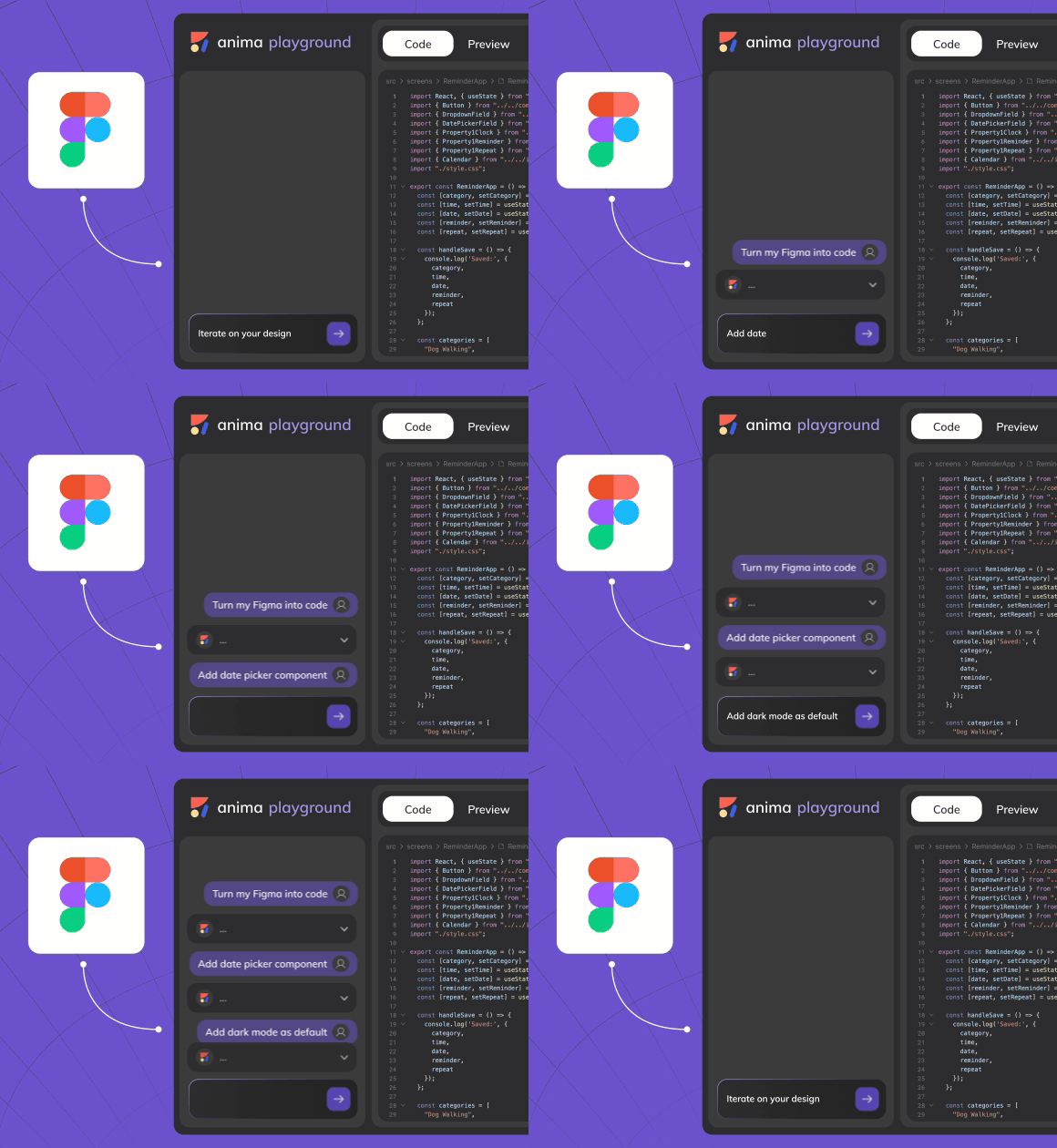
When your starting point is already a Figma design, drop the Figma link into Anima and let the AI agent turn it into a working web experience. From there, you can vibe code on top of the design: add interactions, connect data, publish the page, or hand the result to a developer or coding agent.
This is especially useful when the job is not “invent a new screen,” but “turn this approved design into a working, editable experience.”
Open Anima and drop in your Figma link when Figma is your starting point.
5. Vibe code starting from an image
An image can be a strong design brief. You might have a screenshot, wireframe, moodboard, visual direction, or a generated concept from another AI tool.
In Anima, you can use images and visual references as part of the prompt. Instead of describing every detail in text, you can show the direction and ask Anima to create a working version. Then you can refine the layout, code, copy, components, and responsive behavior by chat.
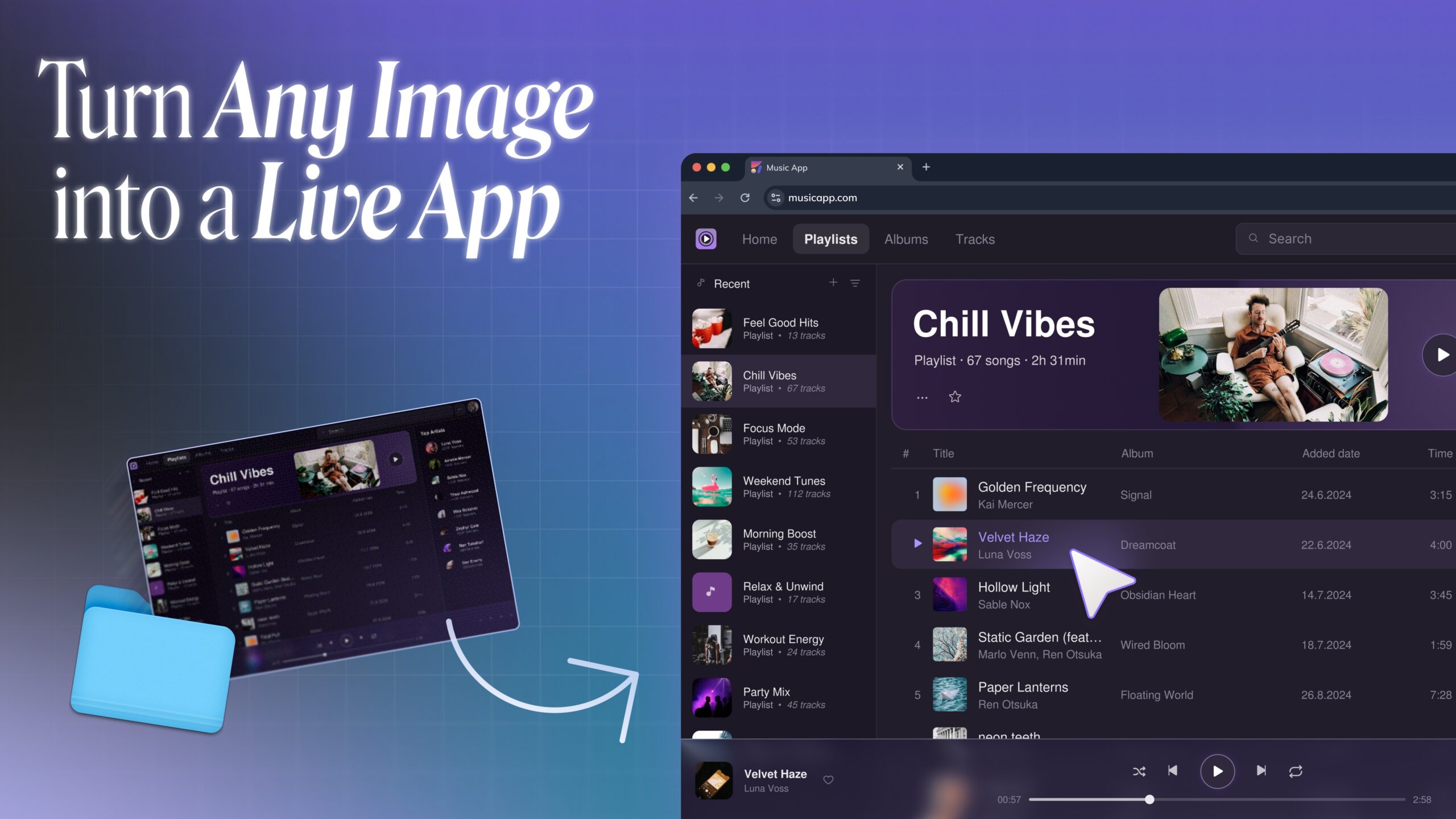
This is a practical bridge between visual inspiration and real product UI: image in, editable web experience out.
What is vibe design?
Vibe design is designing by intent, taste, and iteration. You describe the outcome, provide references, react to the generated result, and keep steering until the experience feels right.
It is not random prompting. Good vibe design still needs product thinking: who the page is for, what action it should drive, what brand it belongs to, and what quality bar it must meet. The “vibe” is the creative direction. The workflow is still design.
Anima makes vibe design more useful because the result is not trapped as a static image. You can keep editing, add functionality, publish, and move into code.
What is vibe coding?
Vibe coding is building software by describing what you want and letting AI generate or modify the code. For product teams, the best version of vibe coding is design-aware: it respects layout, hierarchy, spacing, components, and brand — not only logic.
Anima Playground brings vibe design and vibe coding together. You can start visually, then ask for real functionality: add a signup flow, create a pricing toggle, connect a form to a database, add authentication, or publish the site.
That is the important shift: AI design becomes more valuable when it can become working software.
Publish a website with AI
A design is easier to evaluate when people can click it. In Anima Playground, you can publish a website or prototype to a live URL, share it with teammates, test it on devices, and keep updating it as the design evolves.
This is useful for landing pages, campaign pages, pitch prototypes, product concepts, internal tools, and proof-of-concept apps. You do not need to set up hosting before you can show the work.
Publish your AI-designed website with Anima when the goal is to get from idea to live link quickly.
Vibe code email HTML
Email HTML is one of those jobs that is simple in theory and annoying in practice. It has layout constraints, compatibility quirks, and a high need for speed.
With Anima, marketers and designers can prompt an email layout, adapt it from a landing page, or build a responsive HTML email direction visually before handing the code to the email platform or developer. It is a strong fit for newsletters, launch emails, lifecycle campaigns, and quick promotional layouts.
The best workflow is to define the email sections first: hero, message, product block, CTA, social proof, footer, and mobile behavior. Then use AI to generate and refine the HTML.
Edit HTML online with AI
Many teams search for ways to edit HTML online because they do not want to open an IDE just to change a layout, fix copy, adjust a button, or test a new section.
Anima Playground gives you a browser-based workspace with preview, code, and chat. You can inspect the generated frontend, ask AI to make changes, and see the result immediately. That makes it useful for both non-developers who want visual control and developers who want a faster iteration loop.
Instead of copying code between tools, you can keep the design, preview, and code together.
Collect leads: add a database to your AI-designed site
AI design becomes more powerful when the page can do something. Anima Playground includes database and user features, so you can create tables, connect form submissions, manage simple data, and add authentication flows.
For example, you can build a landing page with a lead form, store submissions in a database, add a waitlist, create a protected dashboard, or connect UI components to real data.
This is where Anima goes beyond “generate a page.” You can turn the page into a functional product surface.
Best AI design tools: what to look for
If you are comparing AI design tools in 2026, look beyond the first generated screenshot. The useful question is: can this tool support the full workflow?
| Capability | Why it matters | How Anima helps |
|---|---|---|
| Prompt-to-design | Start from an idea quickly | Generate editable web experiences from prompts |
| Website cloning | Use real web patterns as inspiration | Paste URLs or capture elements into Playground |
| Figma support | Respect existing design workflows | Import Figma designs and design systems |
| Image/reference input | Turn visual direction into UI | Use images as references during generation and iteration |
| Code output | Move from concept to implementation | Generate React/HTML/Tailwind-style frontend code |
| Data and auth | Make the design functional | Add forms, database tables, and user flows |
| Publishing | Share and test quickly | Publish to a live Anima URL and update instantly |
Anima Playground features for AI design
Here is the practical feature set that makes Anima a strong fit for AI design work:
- Prompt-based generation: create pages, apps, sections, and design directions from natural language.
- Website-to-code: turn public URLs into editable frontend code.
- Capture Elements: capture real UI from public, logged-in, internal, or localhost pages with the Chrome extension.
- Figma import: bring Figma designs into Playground and continue building from them.
- Design-system support: use Figma components, variables, tokens, and visual language to stay on brand.
- Image and file context: include visual references and attached assets in your prompts.
- Chat editing: change layout, copy, styles, components, and behavior with plain English.
- Code tab: inspect and edit the generated frontend code.
- Database and users: add forms, data, authentication, and protected routes.
- One-click publish: share a live website or prototype without setting up hosting.
- Export and handoff: download code, push to GitHub, or continue with AI coding agents through Anima workflows.
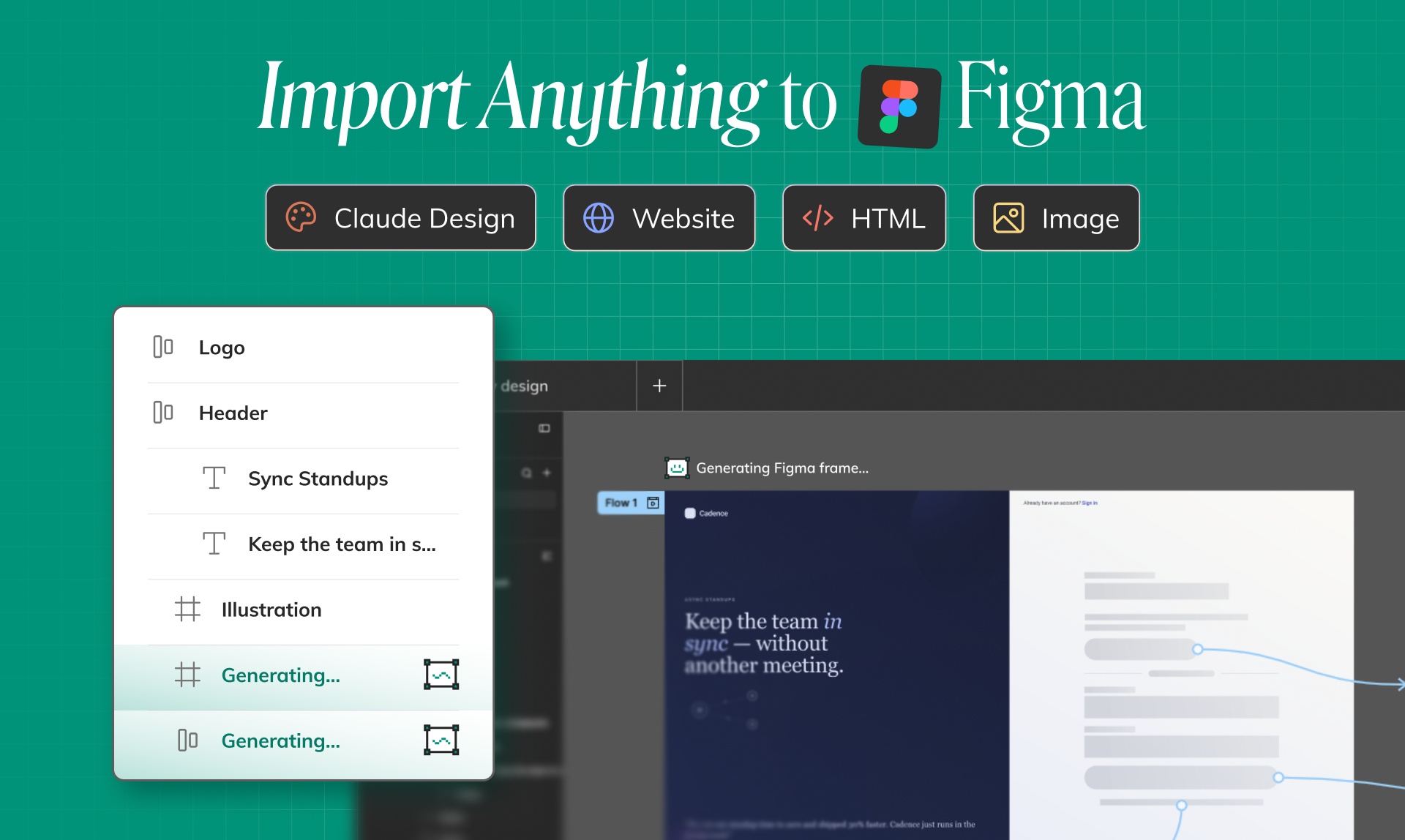
- Copy to Figma: bring Playground output back into Figma as editable layers when design teams need a canvas artifact.
AI design workflow: prompt, refine, build, publish
A practical AI design workflow in Anima looks like this:
- Start with the strongest input you have. Use a prompt, URL, image, existing website, or Figma design.
- Generate the first working draft. Let Anima create the structure, layout, styling, and code.
- Refine with design direction. Ask for changes to hierarchy, copy, spacing, color, components, responsiveness, or brand fit.
- Add functionality. Add forms, database tables, auth, navigation, states, and interactions.
- Publish or hand off. Share a live URL, export code, push to GitHub, or bring the result back into Figma.
This is why AI design is becoming a real production workflow rather than a novelty. The work can start as a prompt and end as something people can use.
AI design FAQs
What is the difference between AI design and AI image generation?
AI image generation creates pictures. AI design creates editable product experiences: layouts, UI, copy, components, responsive behavior, and often code. For product and web teams, editable structure matters more than a polished but flat image.
What are the best AI design tools for web design?
The best AI design tools for web design help you generate, edit, code, and publish. Anima Playground is built for that workflow because it supports prompts, URLs, Figma designs, images, website capture, code editing, data, and publishing.
Can AI design replace designers?
No. AI can accelerate drafts, variants, and implementation, but good design still needs taste, strategy, user understanding, brand judgment, and product context. AI design works best when humans steer the outcome.
Can I use AI design with Figma?
Yes. With Anima, you can drop a Figma link into Anima Playground, turn the design into a working web experience, and keep editing, coding, and publishing with AI.
Can I publish a website created with AI?
Yes. Anima Playground lets you publish AI-generated websites and prototypes to a live URL, then keep editing and updating them as the project evolves.
Start designing with AI
AI design in 2026 is not only about making a first draft. It is about moving from idea to interface to working product with less friction.
If you want to start from a prompt, clone a website, capture a logged-in product, import a Figma design, use an image as inspiration, edit HTML online, add a database, or publish a live site, Anima Playground gives you one place to do it.